

logo
  • Projects
  • Articles
logo
  • Projects
  • Articles
Youssef Wael logo

Front-End development and UI engineering with a focus on performance, clarity, and conversion.

Navigation

  • Home
  • Projects
    Front-endReact.jsNext.jsUI/UXWordpress
  • Articles
    FrontendBackendWordPressArtificial IntelligenceDevOps & HostingBusiness & TechDev Tools
  • Services
  • About
  • Contact

Social

©

© 2026 Youssef Wael. All rights reserved.

WordPress Plugin for Managing Custom Fields and Dynamic Content
WordPress

WordPress Plugin for Managing Custom Fields and Dynamic Content

A practical WordPress plugin that allows you to create and manage custom fields easily, enabling dynamic display of content on your pages without any coding.

February 14, 2026
Share

If you want to add custom data to your website pages such as project specifications, product details, additional links, or custom images, this plugin provides an easy way to manage everything directly from the WordPress dashboard without complexity.

In this guide, we will explain the download, installation, and usage process step by step.

First: Downloading the Plugin

Download the plugin file (ZIP) from the repository here.

Log in to your WordPress dashboard.

Go to:

Plugins → Add New → Upload Plugin

Select the ZIP file and click Install Now.

After installation, click Activate.

Second: Creating Custom Fields

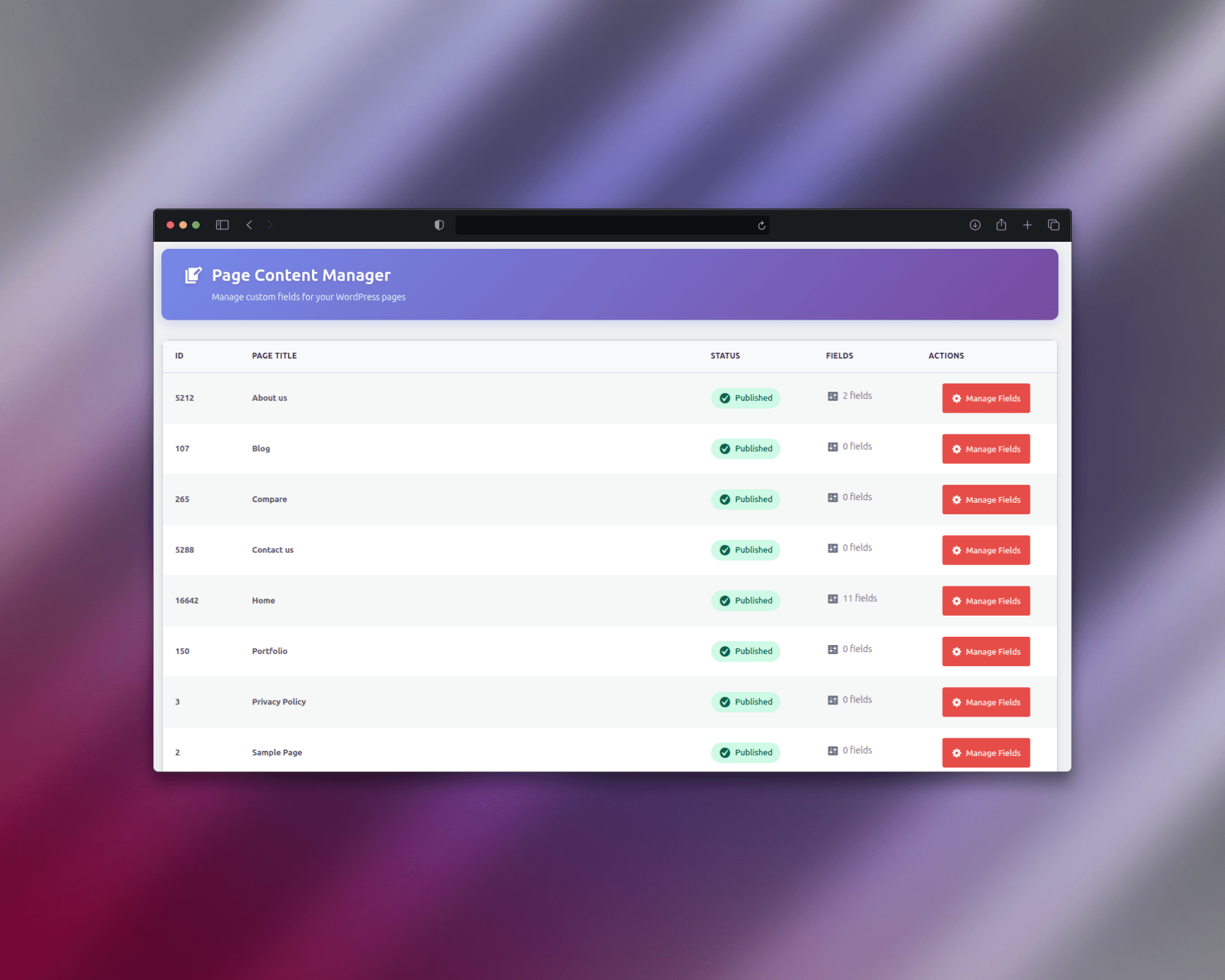
After activating the plugin, you will find a new section in the dashboard called:

Custom Fields or Manage Fields

All website pages will appear automatically in a list.

Click on Manage Fields next to the page you want to customize.

Click Add New Field.

Choose the field type:

Text

Number

Image

URL

Textarea


Set the Field Name (this is very important because it will be used when displaying the field dynamically).

Click Save.

Third: Displaying the Data Inside Pages

Go to a new page or edit an existing page built with Elementor.

Inside any widget (text, image, button, etc.), you will see the Dynamic Tags option.

Click on Dynamic Tags.


Dynamic Tags.png

Select the field name you created.

The selected field will now display dynamically inside that element.

The way you handle the link field will be different if Dynamic Tags isn't available from the mentor. Adding the shorcode in place of the content will work normally.

Related articles

Headless WordPress: When to Choose Decoupled Architecture for Enterprise Scale

Headless WordPress: When to Choose Decoupled Architecture for Enterprise Scale

August 22, 2026

Explore why enterprise organizations are moving toward decoupled WordPress to achieve superior performance, security, and multi-channel content delivery.

The New WordPress Update: AI Becomes More Integrated Into Website Management

The New WordPress Update: AI Becomes More Integrated Into Website Management

May 28, 2026

A clear overview of WordPress’s growing AI direction, from the AI Assistant in WordPress.com to the official WordPress AI team and experimental developer packages.

Why WooCommerce is Better Than Shopify for Arabic E-commerce Stores (Cost, SEO & Full Control)

Why WooCommerce is Better Than Shopify for Arabic E-commerce Stores (Cost, SEO & Full Control)

March 17, 2026

Discover why WooCommerce is a smarter choice than Shopify for Arabic e-commerce stores, offering lower costs, full control, better SEO, and unmatched flexibility.